
The Bigmind HubSpot integration connects your HubSpot CRM to Bigmind so your team can use HubSpot contacts, companies, deals, leads, owners, teams, and selected custom objects in Bigmind workflows.
Once connected, Bigmind imports HubSpot CRM data, helps match HubSpot users to Bigmind users, supports HubSpot-sourced teams, and can optionally write selected Bigmind activity back to HubSpot when outbound sync is enabled for your organization.
#Before you start
- You must be an organization owner or administrator in Bigmind.
- You must be able to authorize apps for the HubSpot account you want to connect.
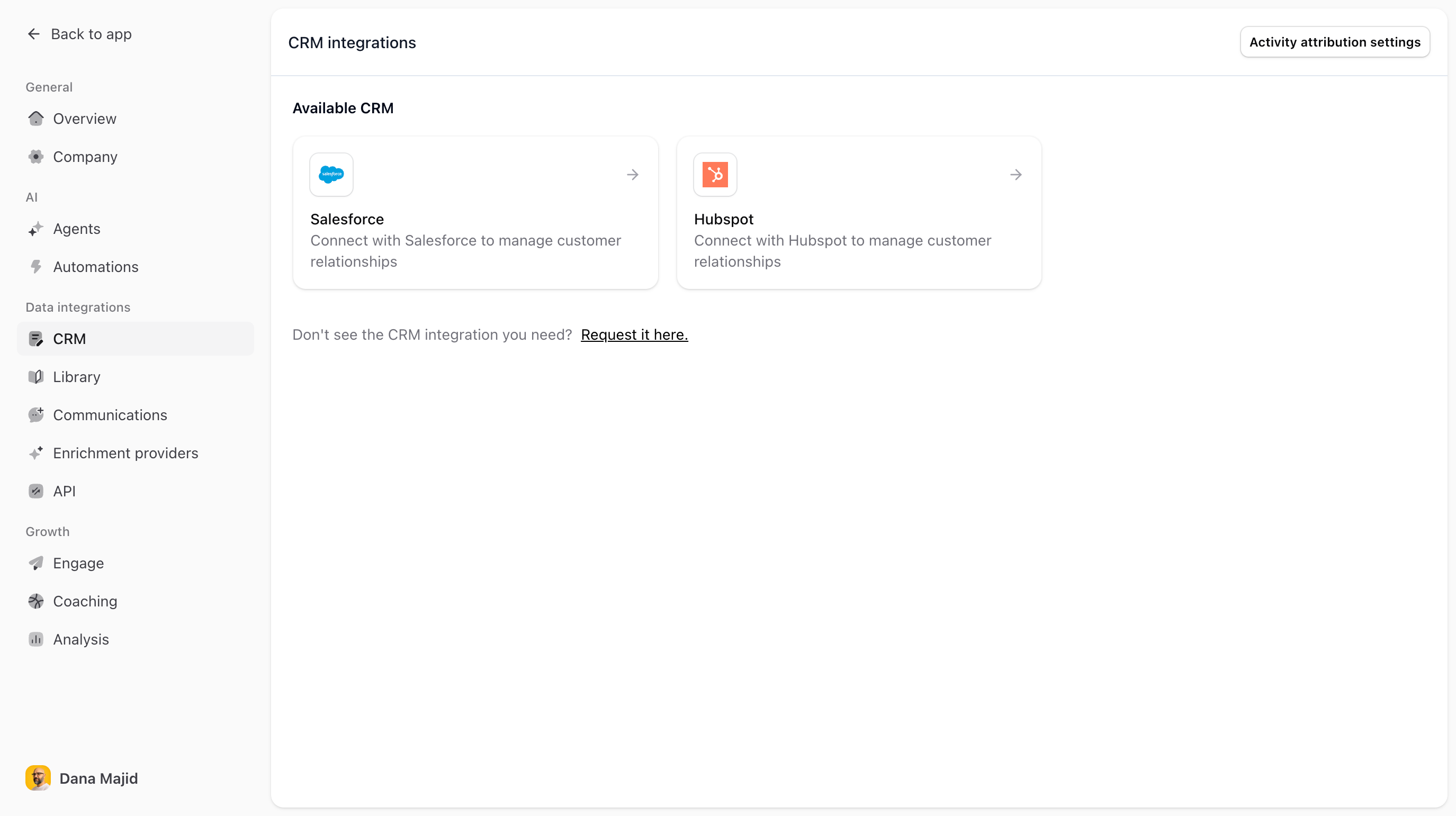
- Only one organization-wide CRM connection can be active in Bigmind at a time. If another CRM is already connected, disconnect it before connecting HubSpot.
- Use a HubSpot account that has access to the CRM objects, fields, users, teams, and custom objects your team needs in Bigmind.
#Install and connect the app
- Log in to Bigmind.
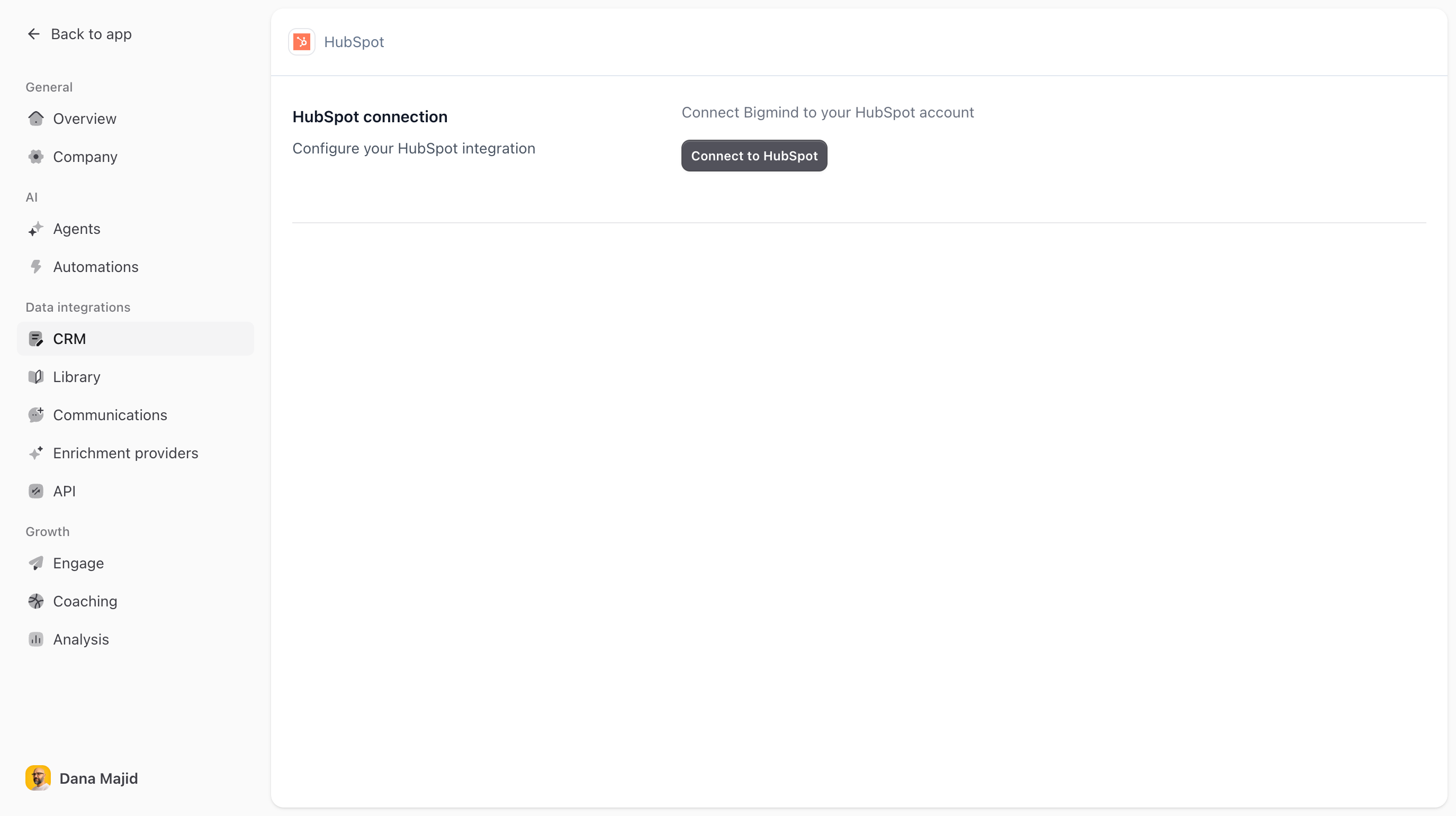
- Go to Settings > CRM > HubSpot.
- Click Connect to HubSpot.
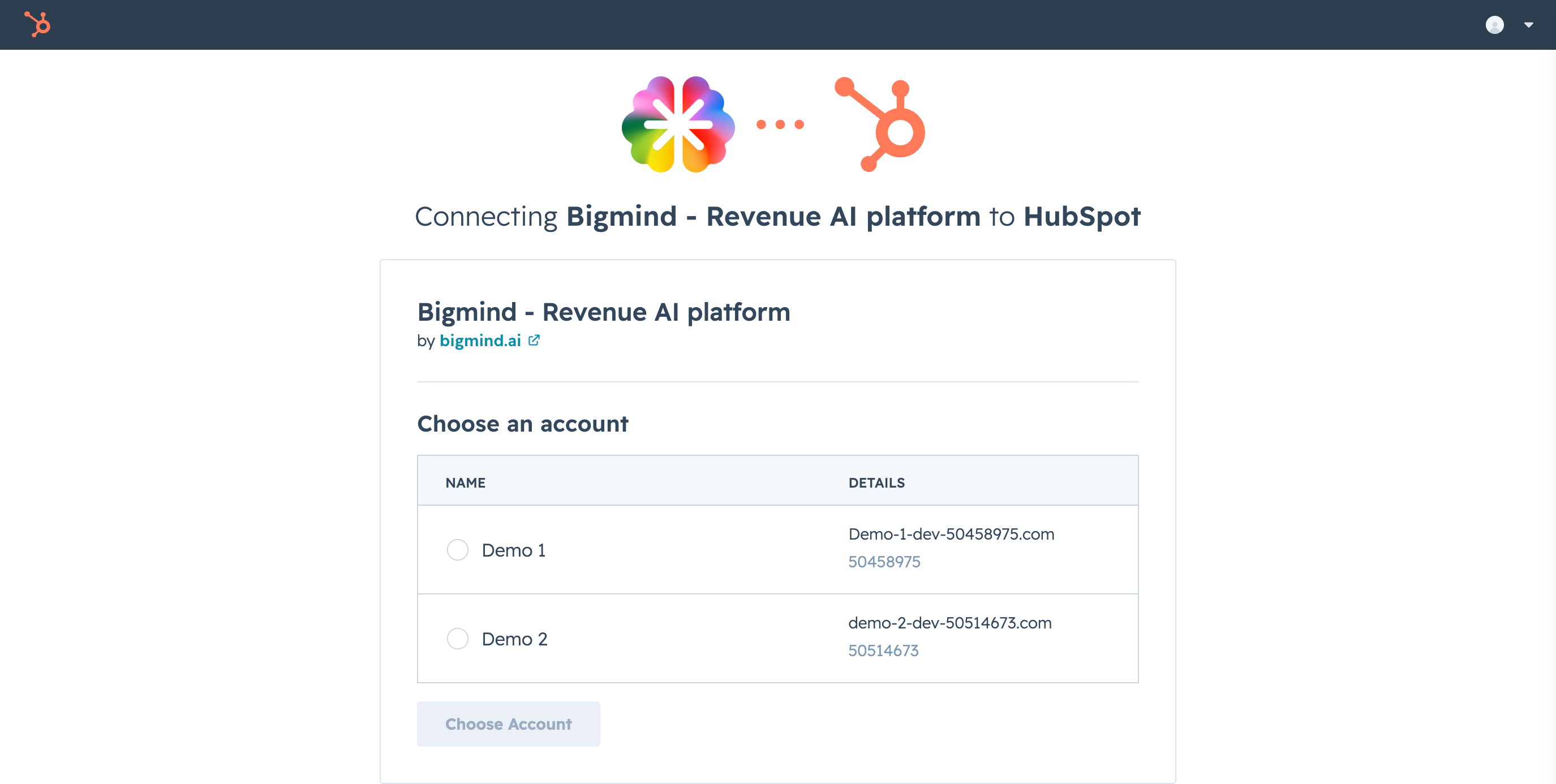
- When HubSpot opens, sign in if prompted.
- Select the HubSpot account you want to connect to Bigmind.
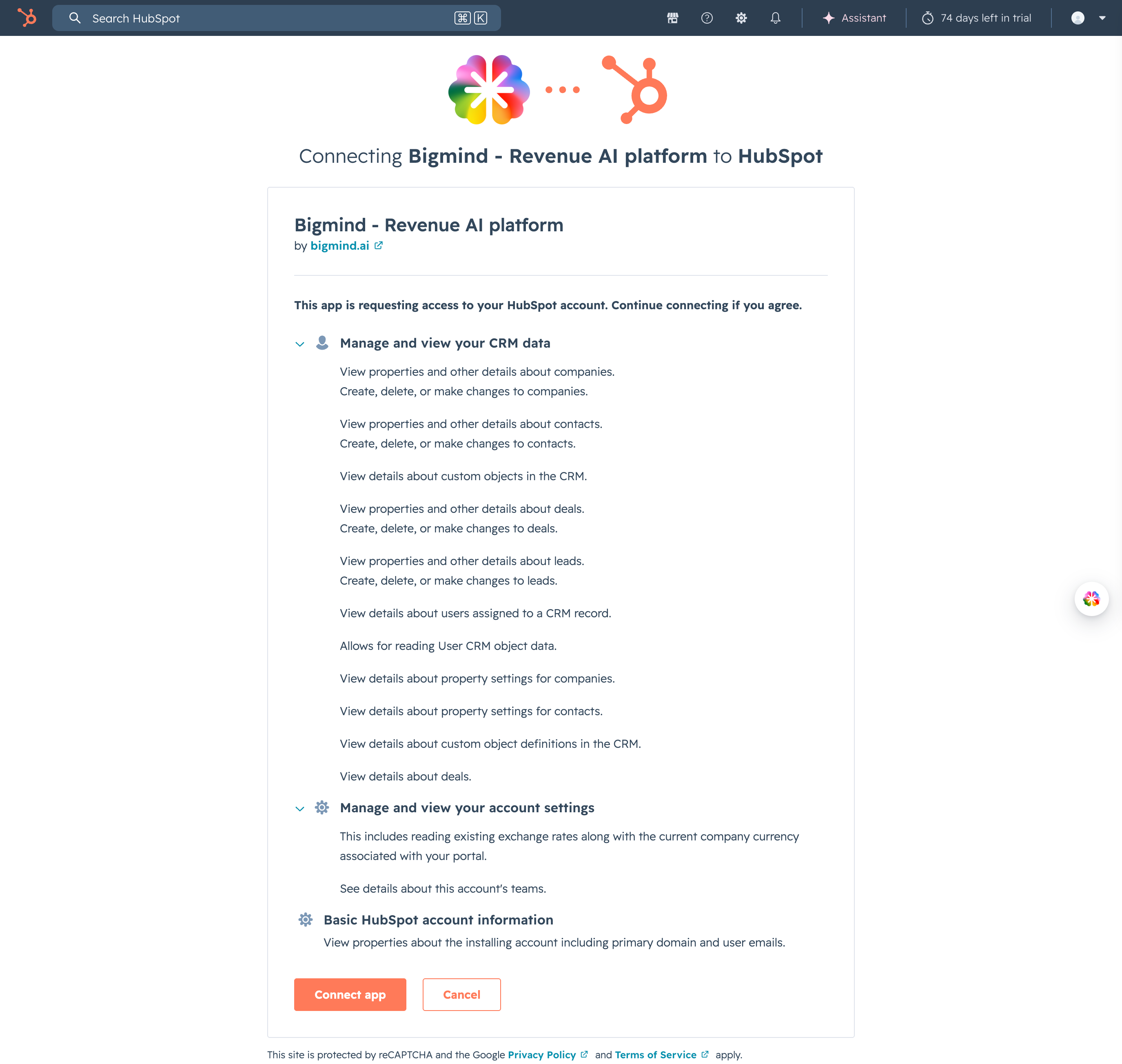
- Review the requested permissions. Bigmind requests access needed to read CRM schemas and records, read users and teams, read currencies, read custom object data, and write supported CRM data or activities when enabled.
- Click Connect app.
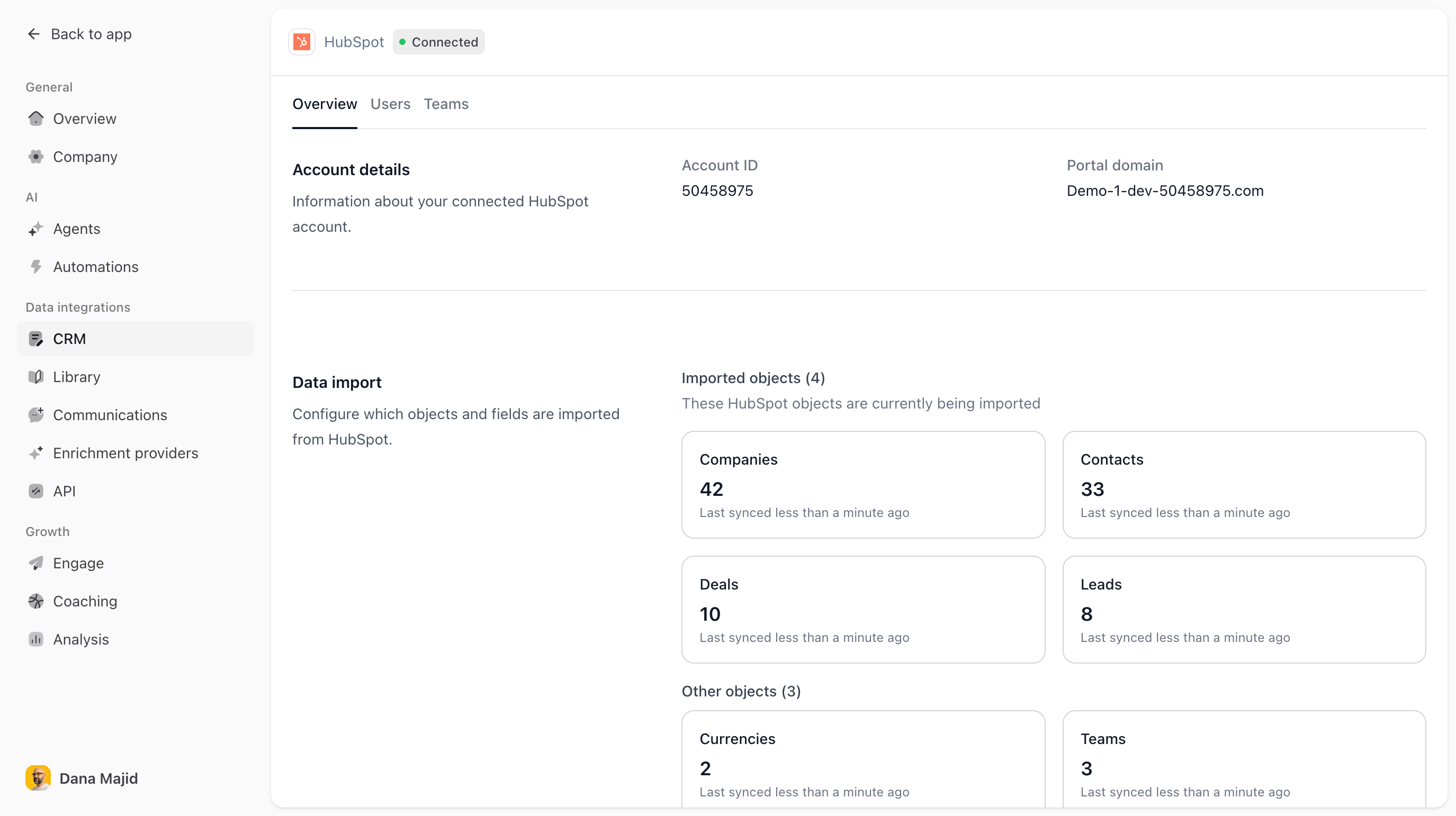
- After HubSpot redirects you back to Bigmind, confirm that the HubSpot page shows a Connected badge.
#Configure the integration
Review account details
- Go to Settings > CRM > HubSpot.
- Open the Overview tab.
- Review the connected HubSpot account ID and portal domain.
Configure imported objects and fields
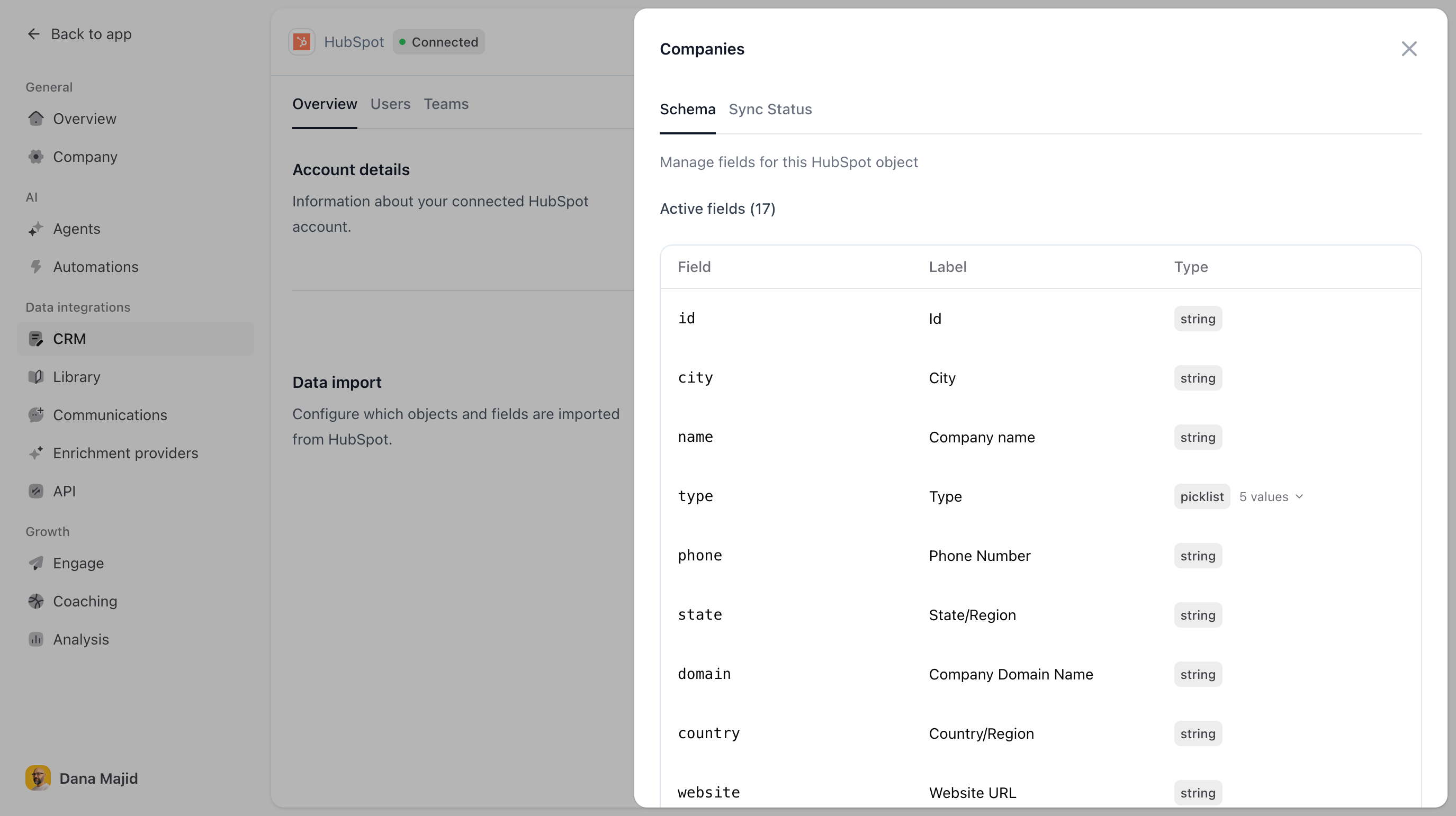
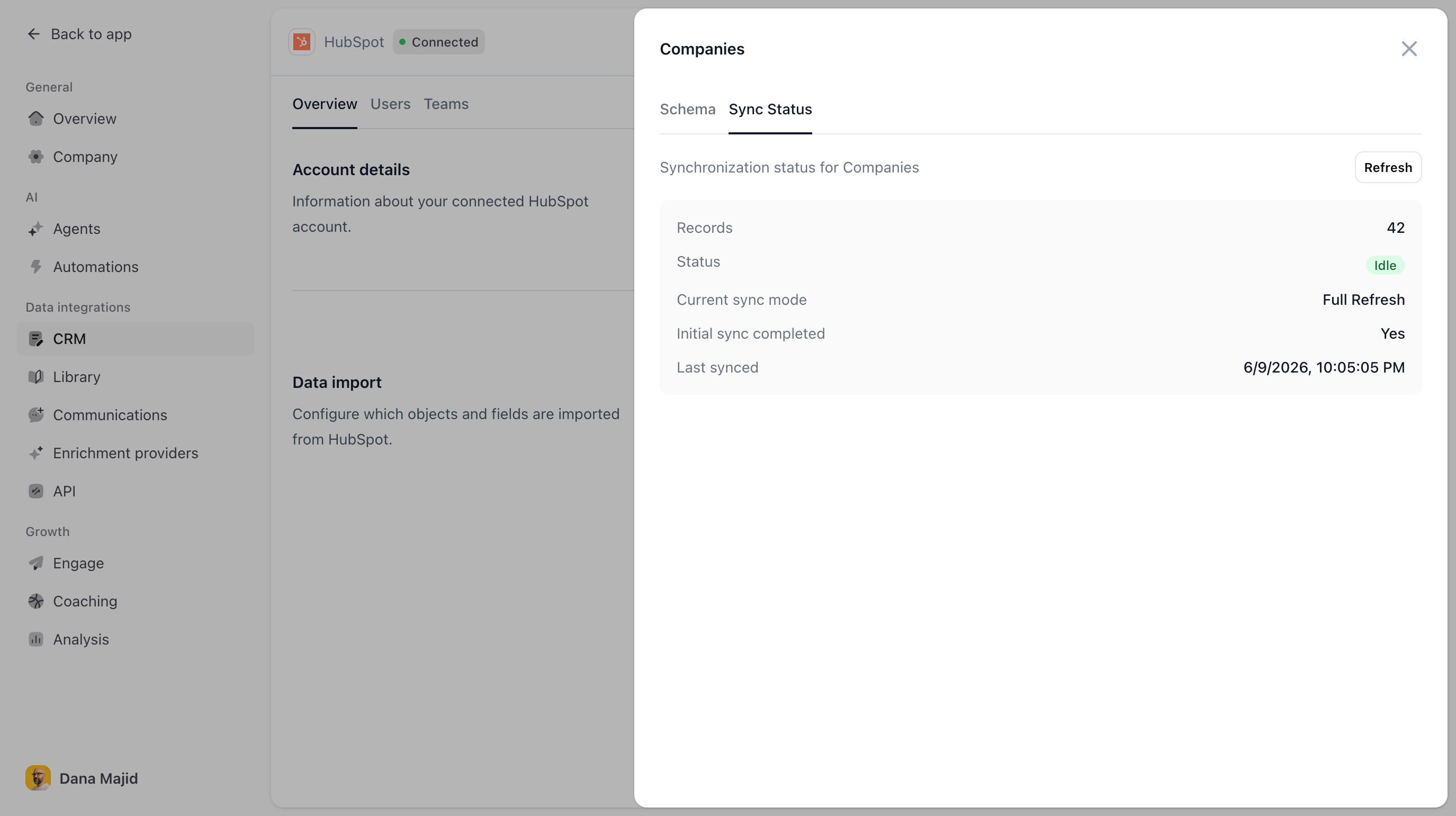
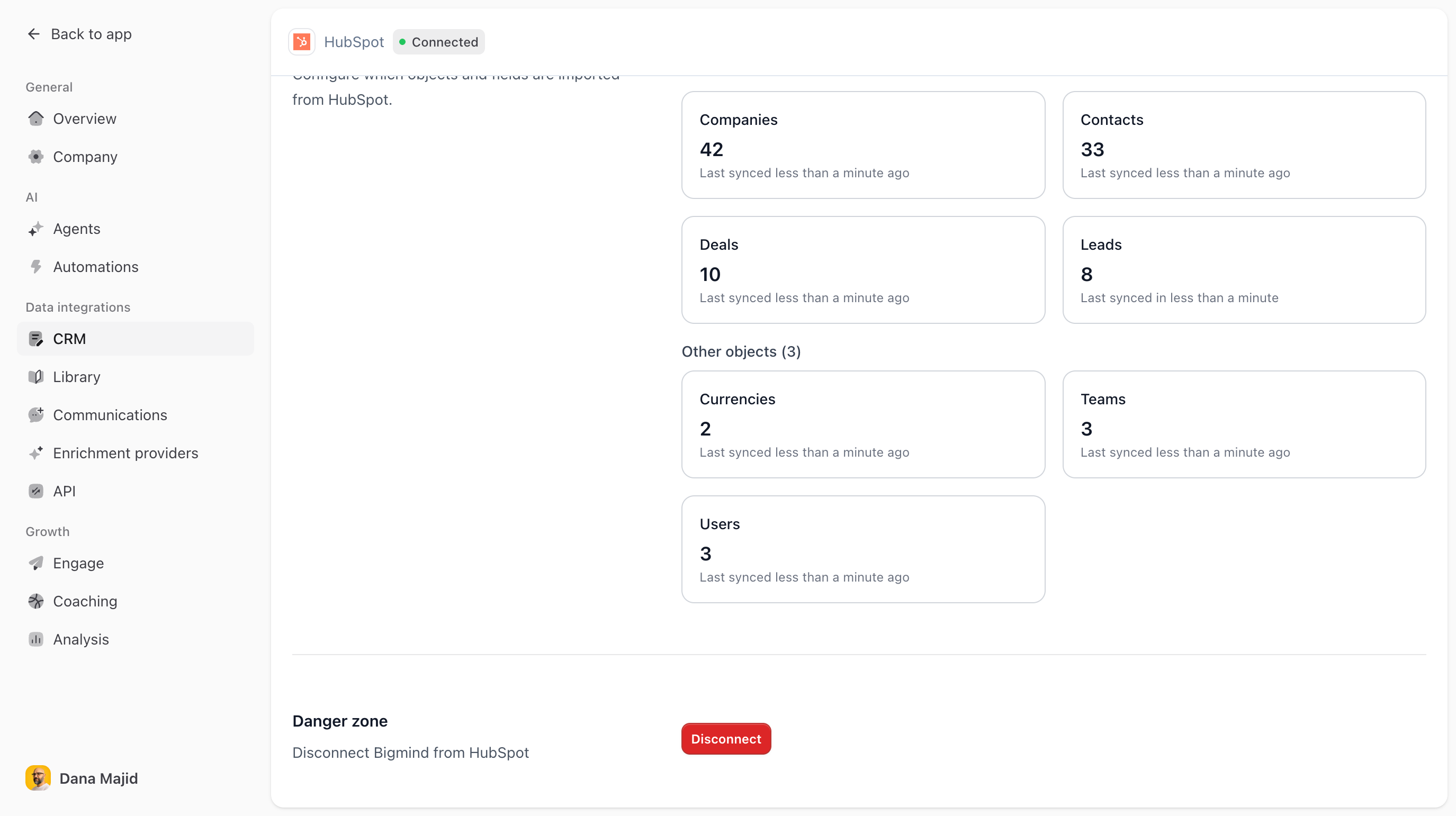
Bigmind imports core HubSpot CRM objects such as contacts, companies, deals, leads, owners, users, teams, and currencies. Admins can review imported objects, inspect sync status, import additional fields, and add custom objects when available for the organization.
- In the Overview tab, find Data import.
- Click an imported object card to view its schema and sync status.
- Use Import new fields to add more fields for an object.
- Use Import custom objects to add supported HubSpot custom objects.
- For deal objects, mark additional numeric fields as amount fields when they should appear as amounts on the deal board.
Match HubSpot users to Bigmind users
- Open the Users tab.
- Review the HubSpot users Bigmind has imported.
- For any unmatched user, click Alias to Bigmind user.
- Select the matching Bigmind member and save the alias.
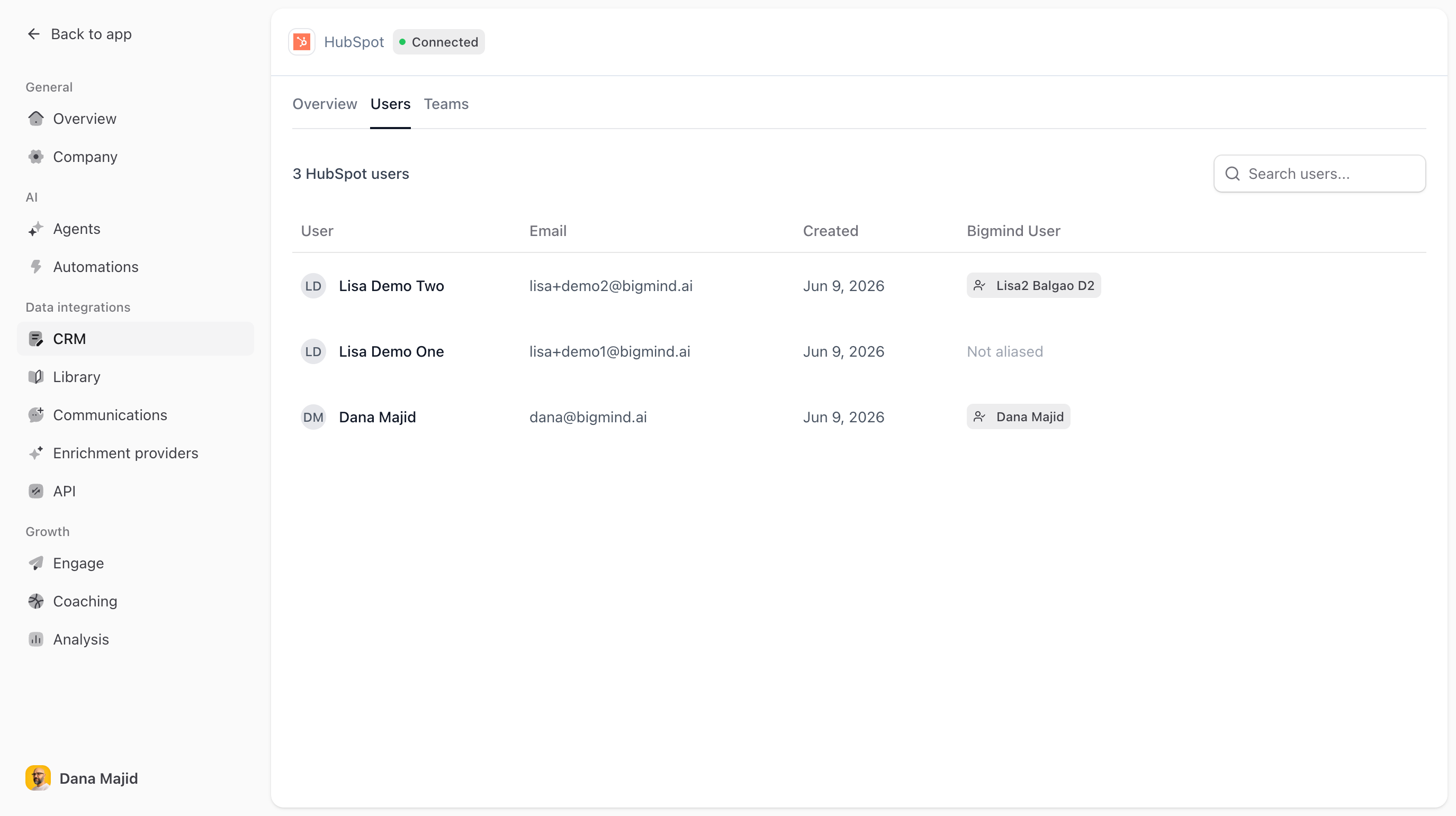
User aliasing helps Bigmind filter accounts and deals by owner, associate activity with the right people, and create accurate HubSpot-sourced teams.
Create HubSpot teams in Bigmind
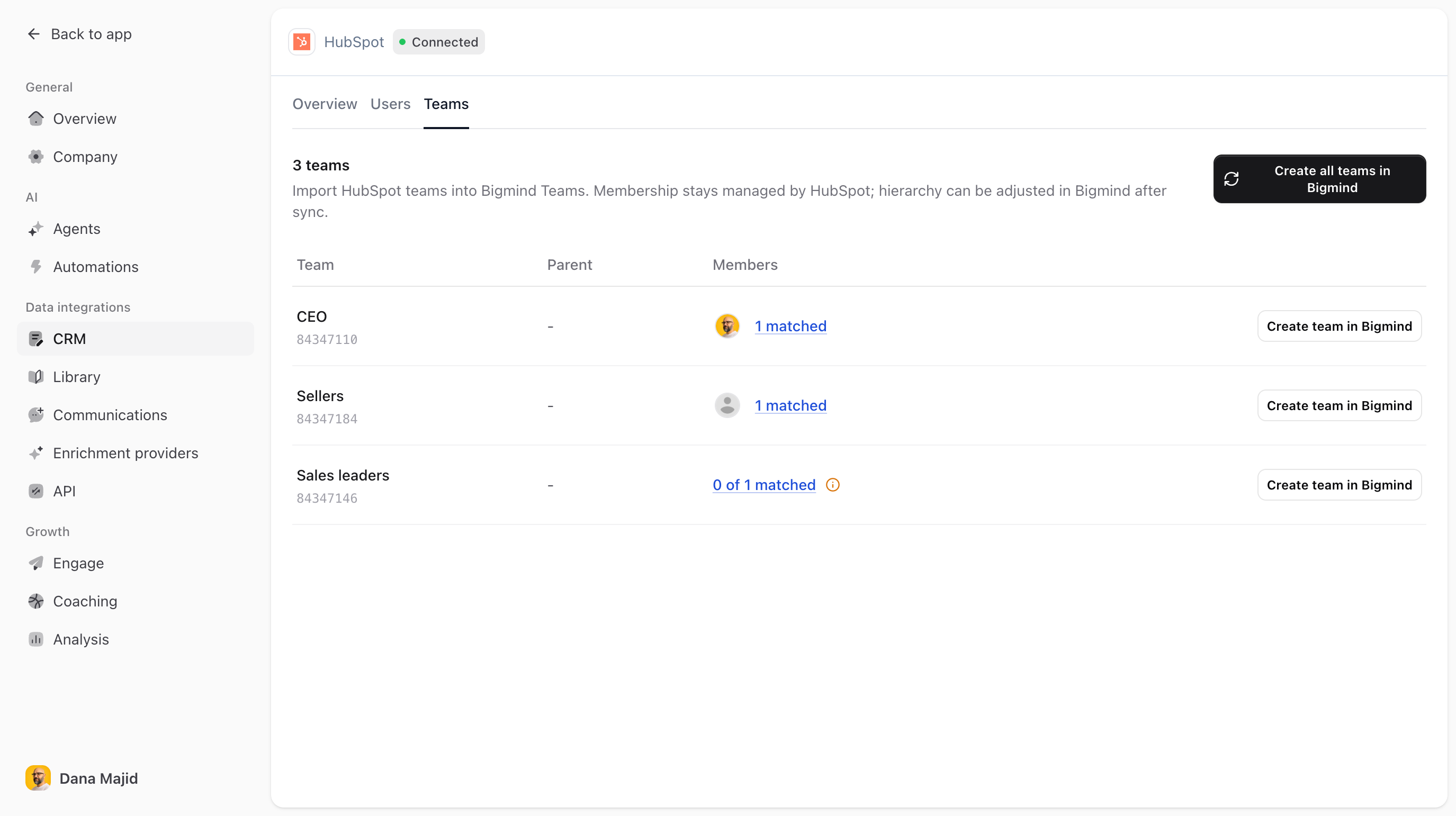
- Open the Teams tab.
- Review the HubSpot teams and their matched members.
- Click Create all teams in Bigmind, or create individual teams as needed.
- Adjust team hierarchy in Bigmind after sync if your organization uses nested teams.
Optional: enable Bigmind to HubSpot sync
If outbound CRM sync is enabled for your organization, the Bigmind to HubSpot sync section lets you choose which Bigmind activity should be written back to native HubSpot records.
- Bigmind notes: Create native HubSpot notes when users add notes in Bigmind.
- Bigmind todos: Create native HubSpot tasks when users add todos in Bigmind.
- Meeting summaries: Create native HubSpot notes from completed meeting summaries.
- Sent emails: Create native HubSpot email activities when users send emails from Bigmind.
#Use the integration
After setup, Bigmind uses HubSpot data throughout the product:
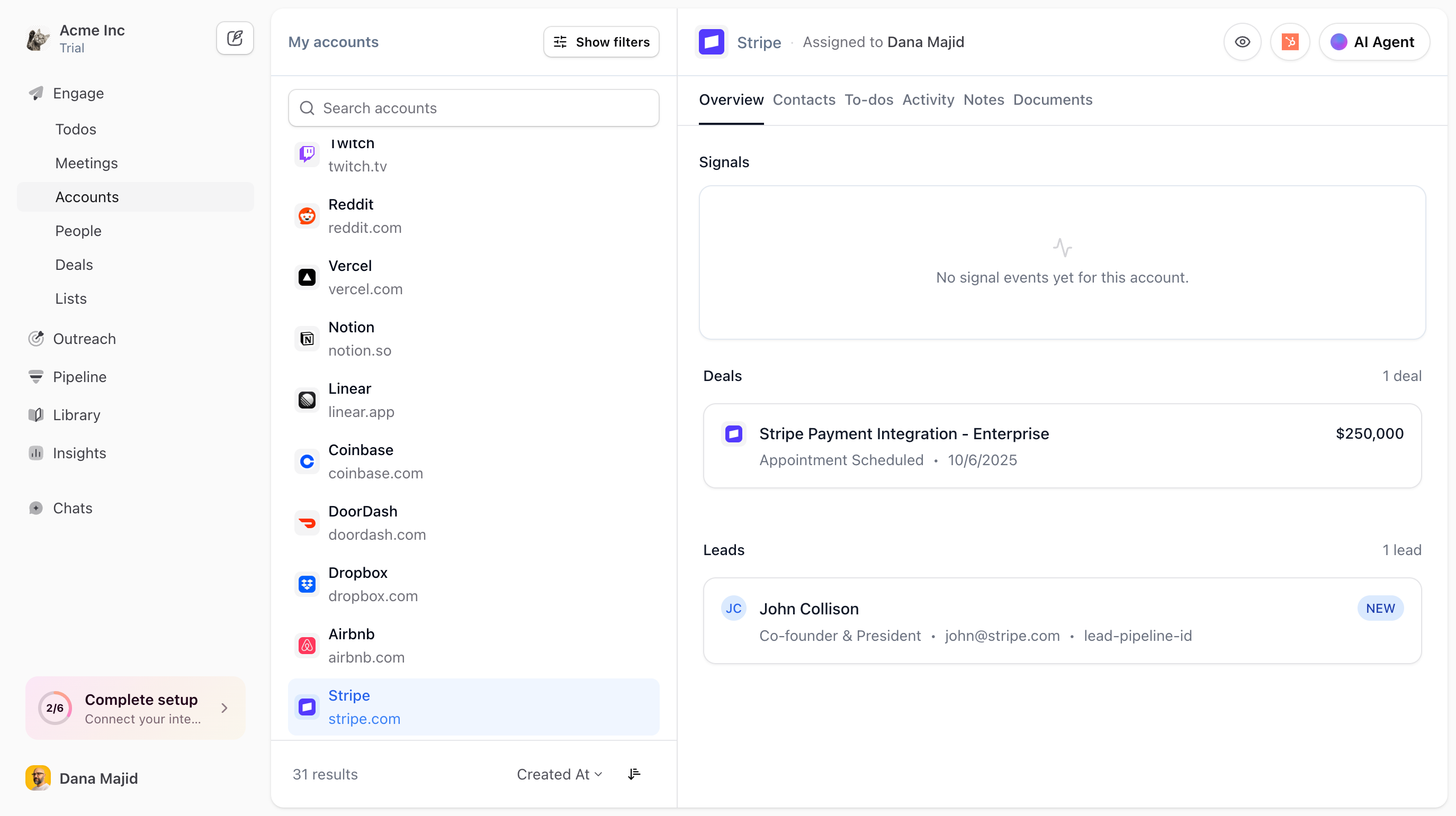
- Accounts: View and filter HubSpot companies in Bigmind account views.
- Deals: View and filter HubSpot deals in Bigmind deal views.
- Activity attribution: Connect meetings, notes, todos, summaries, and email activity to the right CRM records.
- Teams and permissions: Use HubSpot-sourced teams in Bigmind team-based filters and permission policies.
- Custom fields and objects: Make selected HubSpot fields and custom objects available in Bigmind workflows.
Initial sync starts after the connection is created. Most CRM objects sync incrementally after the first import. HubSpot users and teams refresh on a regular schedule, and you can review object sync status from the Data import section.
#Re-authorize HubSpot
If Bigmind needs additional HubSpot permissions later, the HubSpot settings page shows an Additional permissions required banner.
- Go to Settings > CRM > HubSpot.
- Click Re-authorize HubSpot.
- Review the new HubSpot permission request.
- Click Connect app to complete re-authorization.
#Disconnect the integration in Bigmind
- Go to Settings > CRM > HubSpot.
- Open the Overview tab.
- Scroll to Danger zone.
- Click Disconnect.
Disconnecting stops Bigmind from importing new HubSpot data and stops any enabled Bigmind to HubSpot sync. Bigmind does not delete existing HubSpot records when you disconnect. Data that was already written to HubSpot remains in HubSpot unless you remove it there. Previously imported data in Bigmind may remain available according to your organization's data retention and access settings.
#Uninstall the app from HubSpot
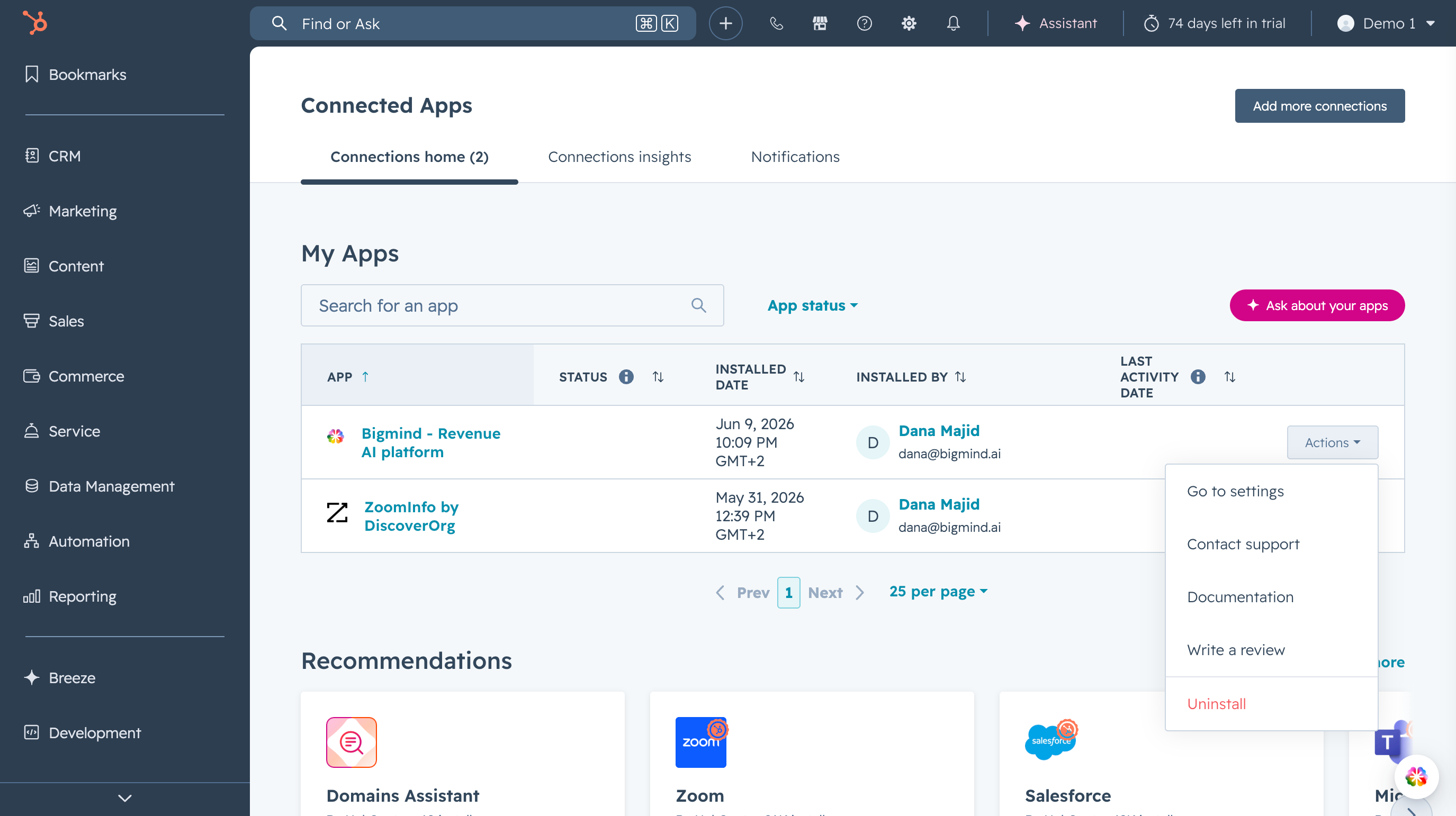
- In HubSpot, click the settings icon.
- Go to Integrations > Connected Apps.
- Find Bigmind.
- Open the app actions menu and choose Uninstall.
- Follow HubSpot's confirmation steps to finish uninstalling the app.
Uninstalling the app from HubSpot revokes Bigmind's HubSpot access. Bigmind sync will fail until the integration is connected again. Uninstalling does not remove data that Bigmind already wrote to HubSpot, such as notes, tasks, meeting summary notes, or email activities.
#Troubleshooting
- You cannot connect HubSpot: Confirm you have permission in HubSpot to authorize apps and that no other organization-wide CRM is connected in Bigmind.
- Some data is missing: Confirm the authorizing HubSpot user has access to the relevant objects and fields, then review the object's sync status in Data import.
- A user shows as not aliased: Open the Users tab and alias the HubSpot user to the correct Bigmind user.
- A team has missing members: Confirm those HubSpot users are imported and aliased to Bigmind users, then let the users sync refresh.
- Bigmind requests more permissions: Use Re-authorize HubSpot on the HubSpot settings page.