MCP

Claude

Add Bigmind as a Claude custom connector.

Add Bigmind to Claude as a custom connector.

#Setup

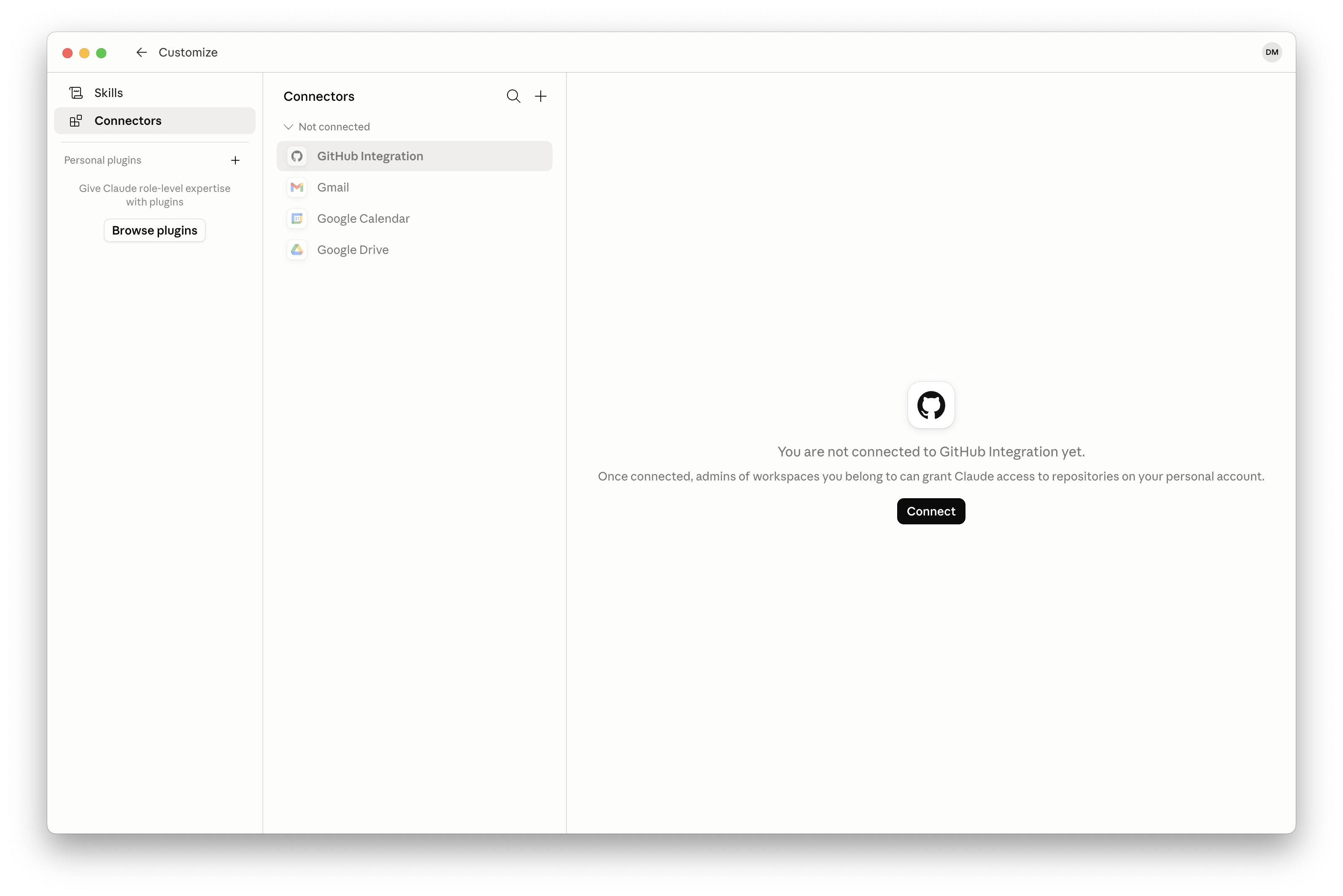
  1. Open Claude settings, then go to Customize and Connectors.
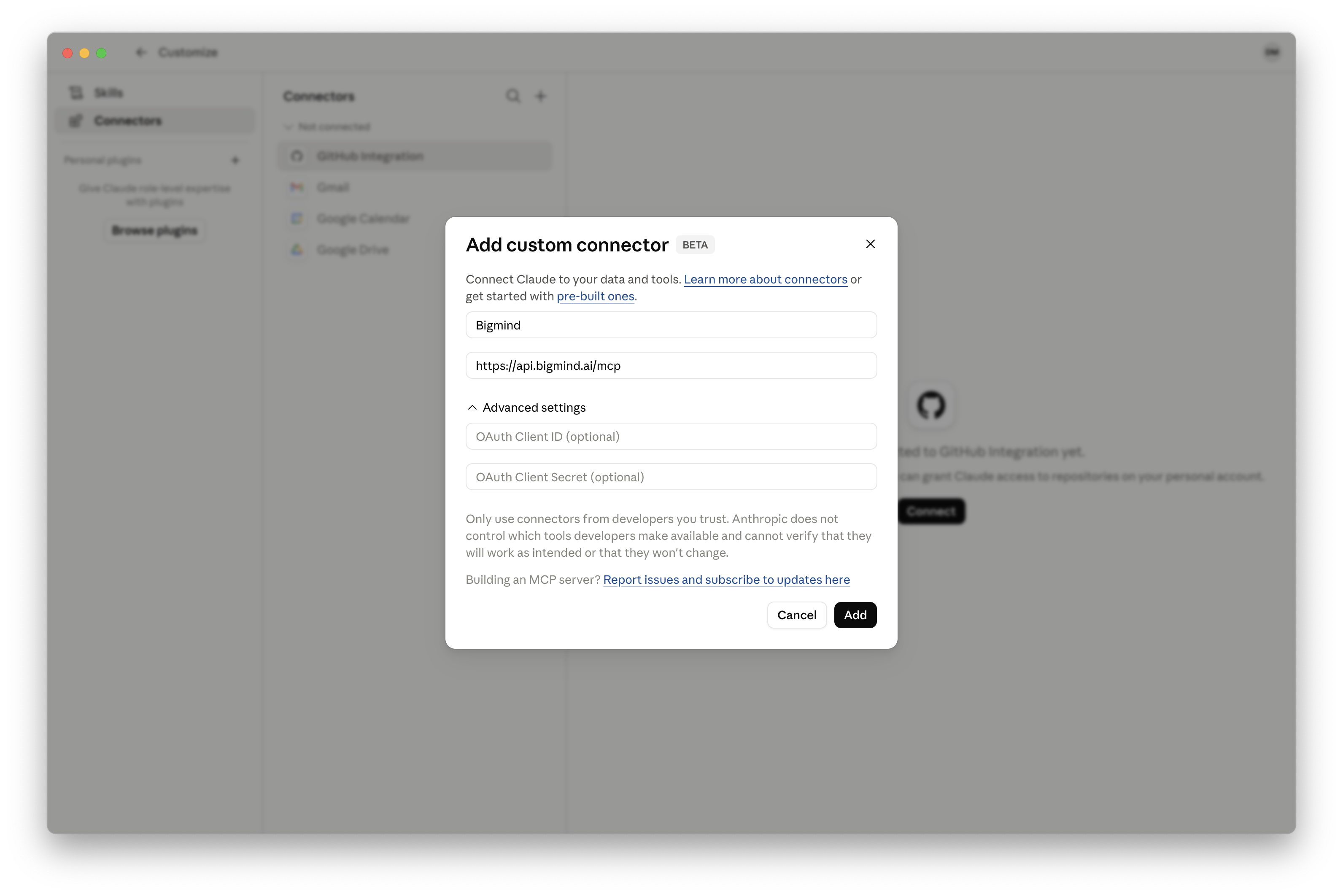
  2. Add a custom connector.
  3. Use Bigmind as the connector name.
  4. Use https://api.bigmind.ai/mcp as the remote MCP server URL.
  5. Leave OAuth client ID and OAuth client secret blank unless Claude requires them.
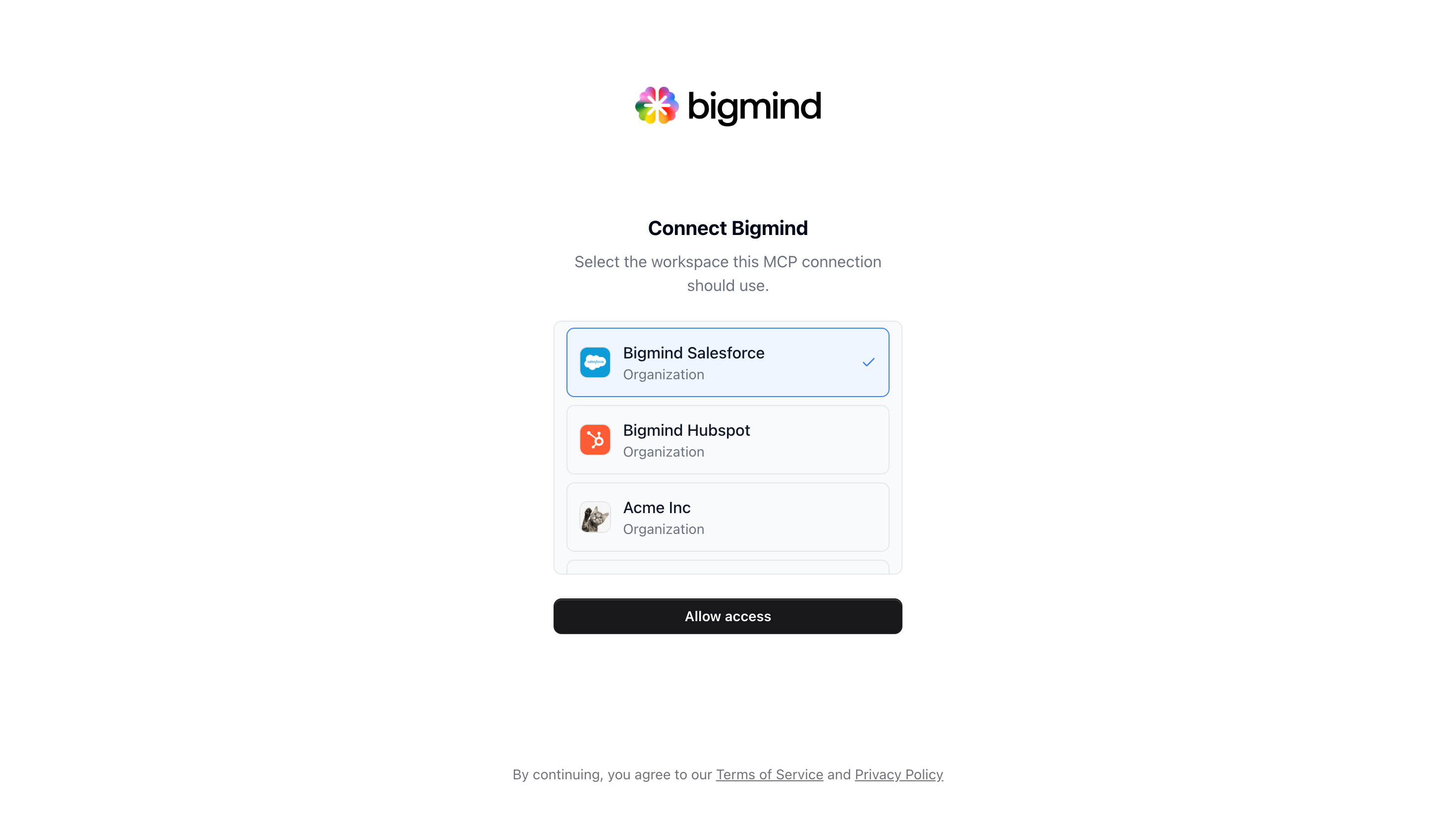
  6. Complete the Bigmind OAuth flow and choose the workspace this connection should use.
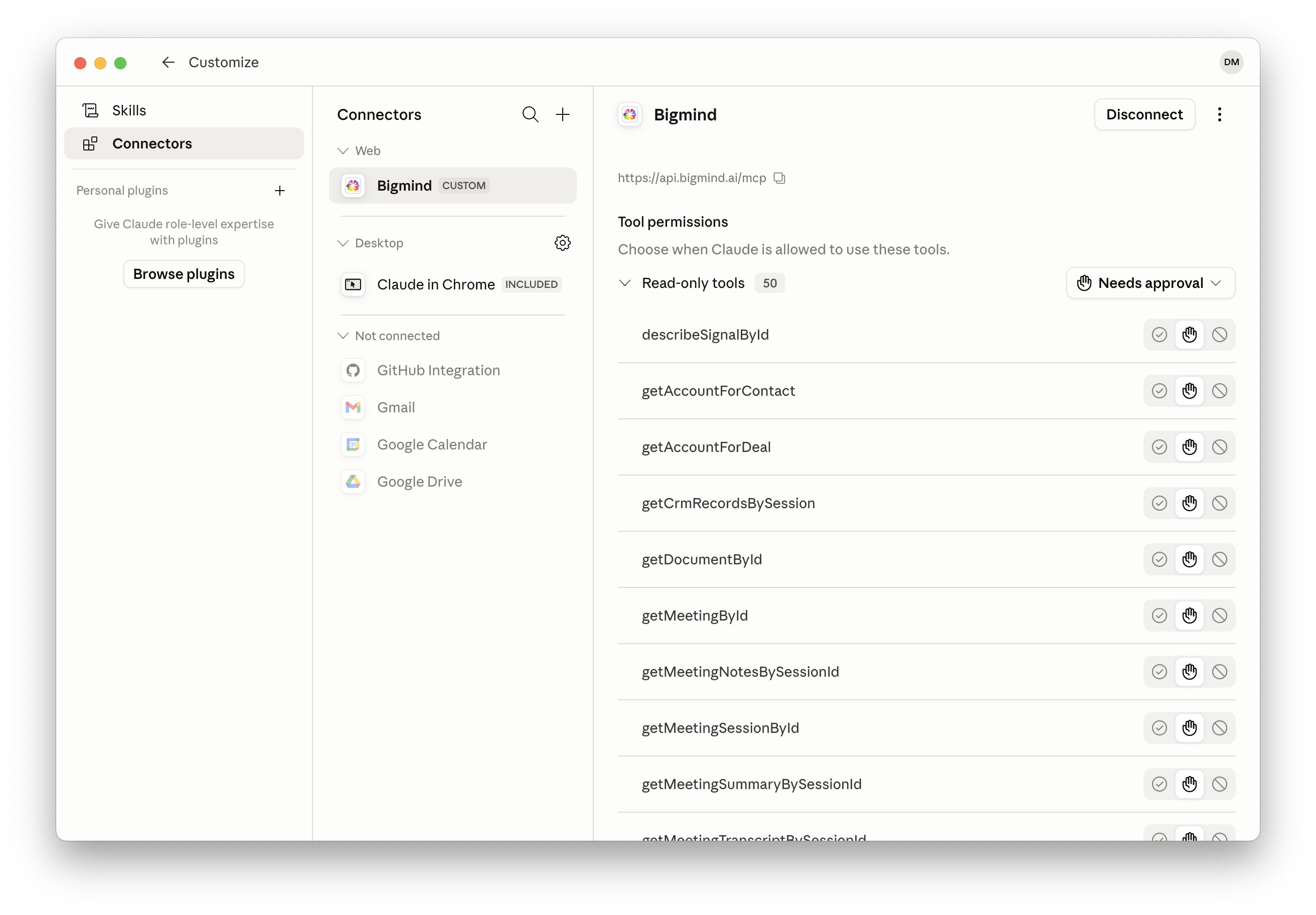
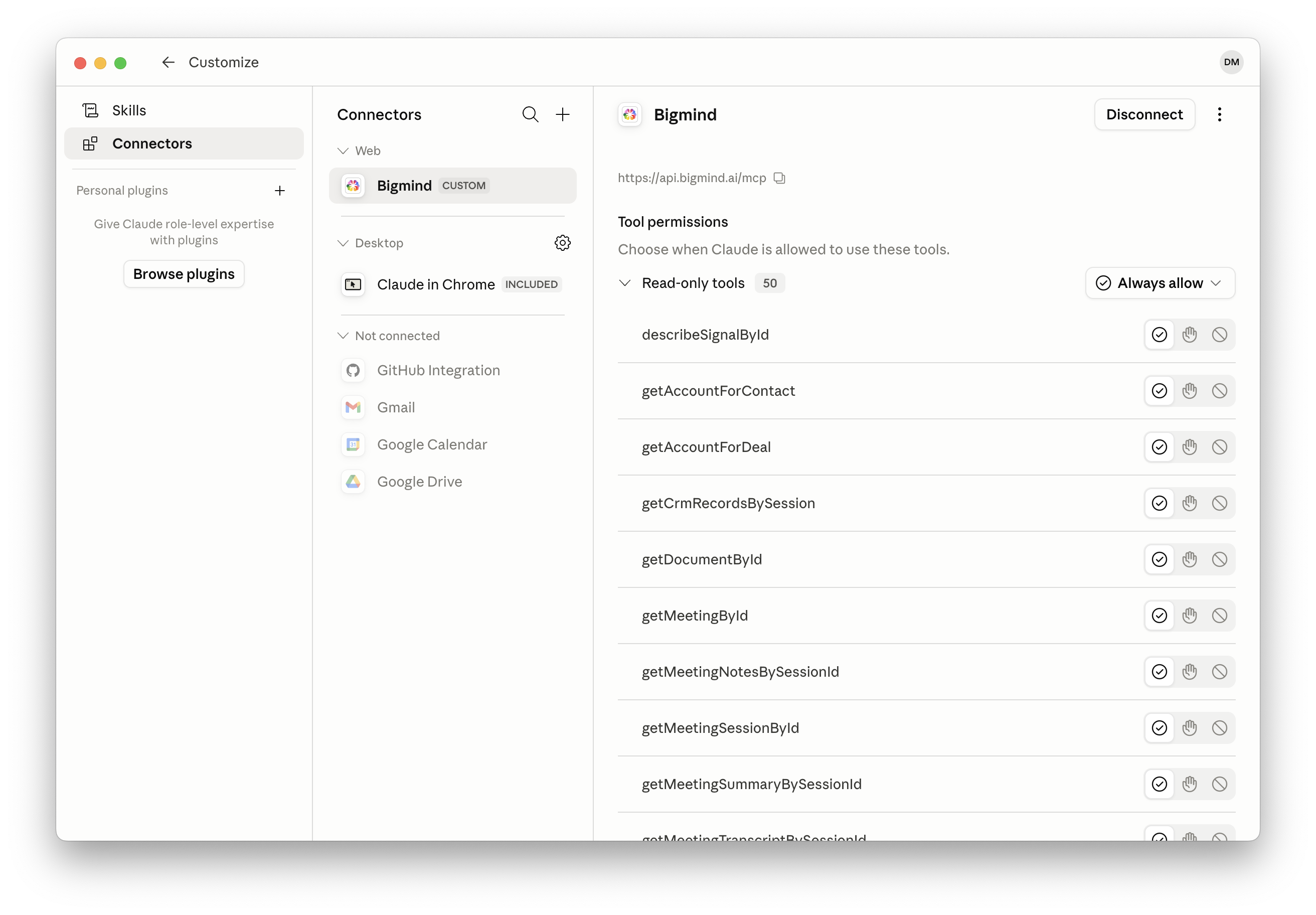
  7. Allow the Bigmind tools Claude should be able to use.

#Screenshots
Open Claude Customize and Connectors settings
Open Claude settings, then go to Customize and Connectors.
Add a custom connector in Claude
Add a custom connector.
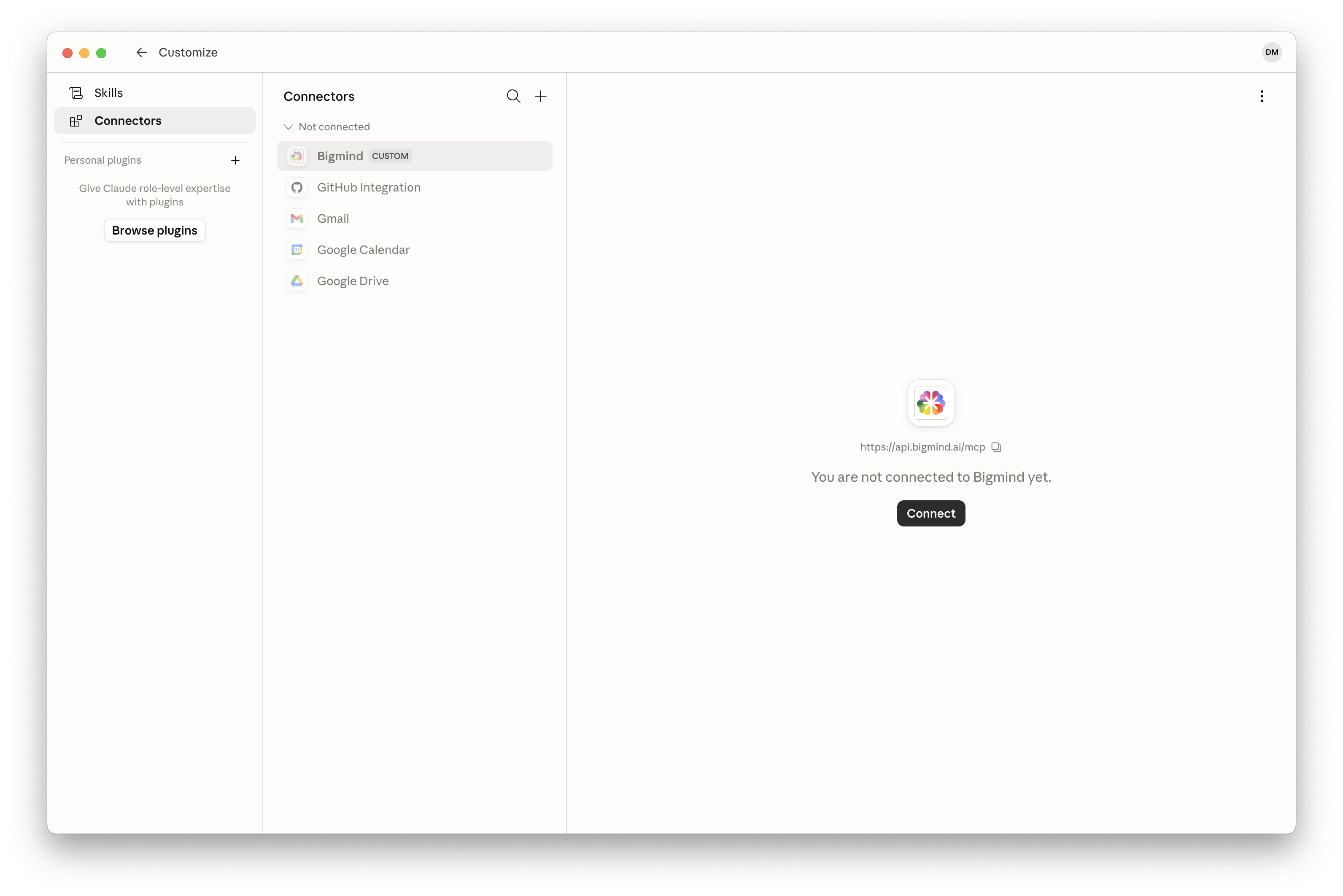
Connect the Bigmind custom connector in Claude
Connect the Bigmind custom connector.
Authenticate Bigmind from Claude
Authenticate with Bigmind.
Confirm the Bigmind Claude connection
Confirm the connection.
Allow Bigmind read-only tools in Claude
Allow the Bigmind tools Claude should be able to use.

#Advanced list tools

Use https://api.bigmind.ai/mcp?tools=lists.read for read-only list access, or https://api.bigmind.ai/mcp?tools=lists.write for read and write list access.

Updated 6/15/2026